
Trouble Charging or Starting Your Phone
Read Below To Learn More
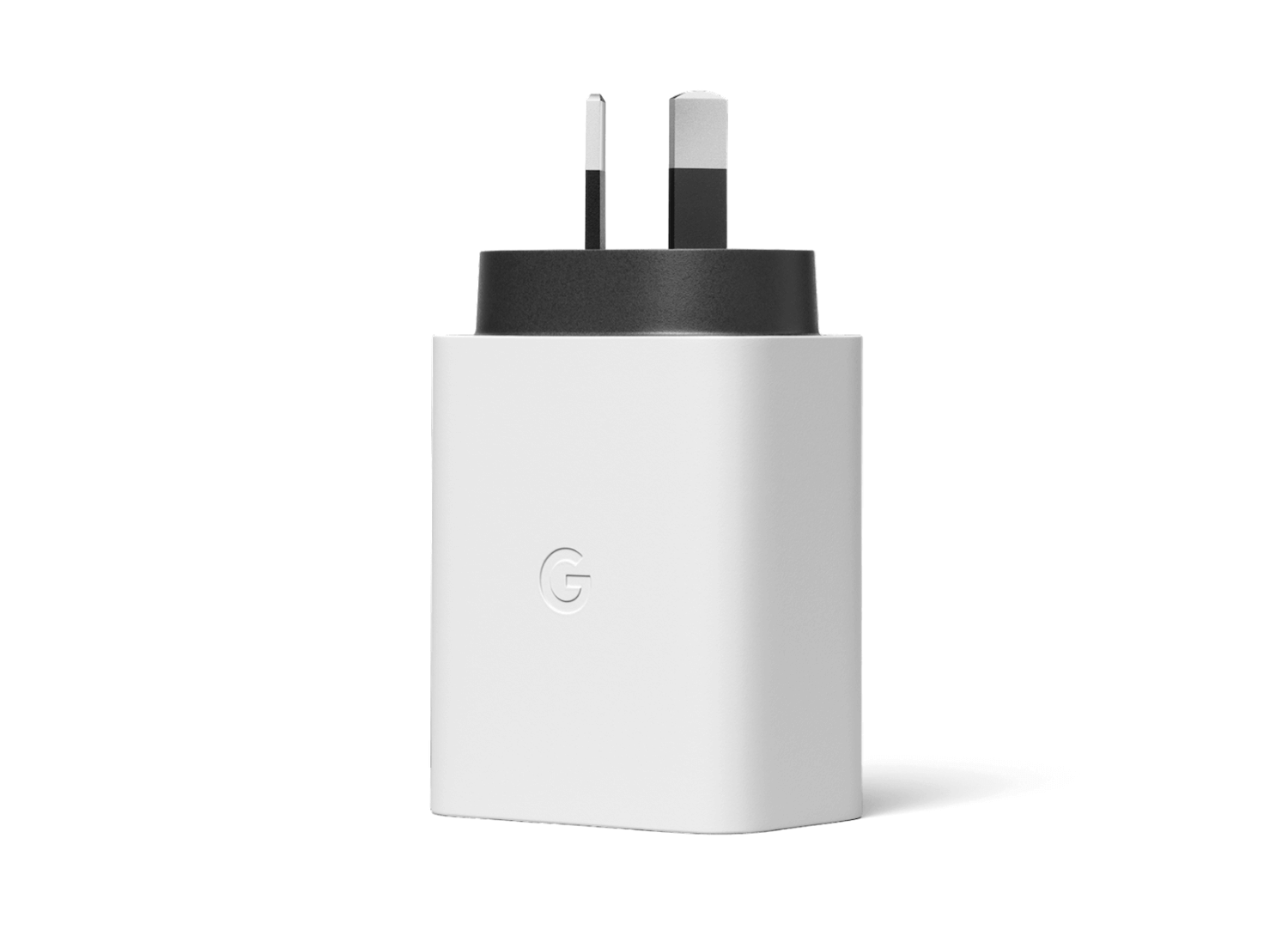
Trouble Charging or Starting Your Phone
New smartphones require more powerful chargers, so charging your new phone from an old charger (with low Watts output) or from your laptop may cause problems starting your phone, especially if it is fully discharged. Once your phone battery is discharged, you can have trouble turning it back on. It is best to ensure it is fully off, then charge over night. Read below to learn how to do this correctly.
The Correct Charger
Firstly, the recommended charger is a USB-C wall charger with 45 Watt Output for the newer 9 and 10 Series Pixel phones. Note that it is still safe to use a 30 Watt charger, but no less, and lower "watt output" means it will take longer to charge. Also charging from your laptop USB socket is not recommended as many laptops do not provide the required wattage. Wireless charging pads are also compatible with your Pixel. Pixel USB-C chargers can be purchased at any electrical store, or online.
Trouble Starting The Phone
Our Pixel phones have better than a 99.5% Quality Rating, meaning less than 1 in 200 phones sold, end up with a physical problem requiring a warranty claim / replacement. Most often, clients having trouble charging or starting their phone is due to using a charger that is not providing the 45 Watts recommended, or charging from their laptop USB socket. The phone battery ends up discharged, starts to charge, then with only 1% charge, tries to automatically turn on, and then shuts down again as it returns to 0% charge, or it may remain on, but become unresponsive.
The Solution
The solution is to force boot / force restart the phone, and pause the start up process, and then charge to 100% with a suitable charger. Leaving it on the charger over night is often a good way to go. The correct way to do this is:
Connect the phone to a suitable charger and turn the charger on.
Force Restart the phone by pressing and holding the power button [top button on the right-hand side of the phone] and count slowly to 30… by the time you get to about 25, it will force the phone into a restart, and you can release the button. You will see the usual yellow warning screen message, and quickly do a single push / release of the power button, where it shows a message: "Press Power Button to Pause". Now the start-up process is paused, so the phone can charge back to 100% without trying to restart itself. If you are too slow to pause the start-up, you can begin this process again without any damage.
Charge back to 100%.
Push the power button to "resume" the start-up process. Your phone should now complete the start-up process, and be fully charged, and ready for you to enter your password.
Swipe Up from the bottom of the screen, and enter your password to use your phone. Your phone should now be in a clean, responsive normal user mode.